
Another Eden Begins Controls and the Command Window
How the field, the menu, and the battle list actually work — check in-game settings for your pad.
Another Eden Begins is a command-battle JRPG with symbol encounters on the field. Steam lists full controller support and recommends a controller. Nintendo Switch and Switch 2 play in handheld or docked. This page describes the layers you will use, not a fake Xbox-versus-PlayStation chart invented from a mobile port. Open the in-game settings on your copy of the demo if you need the exact face-button names. For how those buttons feed damage, read combat. For first-hour setup, stay on Getting Started.
The campaign is a single-player adventure. There is no extra-player control scheme to learn.
Field layer
Official footage and screenshots show a side-scrolling field that sometimes opens into wider 3D spaces — the same presentation language as the original Another Eden, rebuilt for this campaign. You move a lead character (Aldo at the start), run into visible monsters to start a fight, and talk to NPCs to push the story. A minimap sits on the field HUD in published town and Elzion shots. Conversation scenes expose a log, an auto-play toggle, and a hold-to-fast-forward control; those labels are visible in official demo art.
What that means in practice:
- Learn the interact button in the first Baruoki minutes. You will use it on doors, people, and sparkles for the rest of the campaign.
- Treat on-screen monsters as a choice. You can usually walk around a symbol if you are underleveled; you should not assume random first-person battles.
- When a cutscene offers Auto and Fast Forward, use them on a second viewing, not on the first story beat you care about. New Game+ is when skipping becomes reasonable — see New Game+.
Keyboard users on Steam should open the overlay and the in-game config rather than copying a mobile WASD rumor. The publisher has not posted a public PC key table on the English site. Full controller support is the documented path.
Battle layer
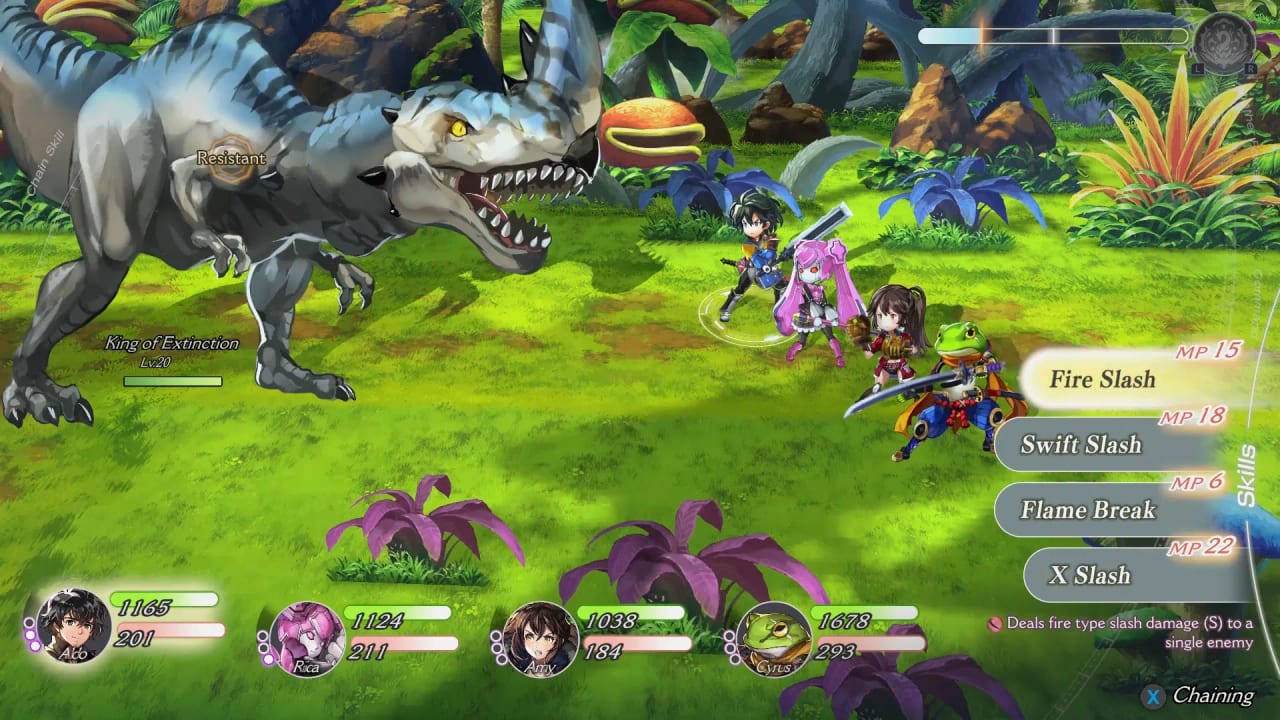
Once a symbol touches you, the command window opens. Published UI shows:
- Four party members with HP and MP along the bottom.
- A vertical skills list with MP costs (Fire Slash, Swift Slash, Flame Break, X Slash in one official shot).
- Weakness and resistance tags on the enemy (Resistant, Chain Skill, King of Extinction as an example target).
- A chaining prompt and an Another Force meter on the right edge.
You pick a command per character, confirm, and watch the round. Chain skills are successive strikes, not a separate mini-game. Another Force is a gauge you fill by attacking, then activate to halt enemy actions while your party unloads. Those systems are explained with more patience on the combat page. This page only cares that you can reach them: move the cursor, confirm, cancel, and open the skill description if the UI offers one.
If a fight feels unreadable, slow down. Command battles are not action combos. The party building page exists because a messy line makes the menu feel harder than it is.
Menu layer
Expect the usual JRPG pause cluster: items, equipment, quest log, map, and a serial-code entry only in the original Cat Beyond Time and Space game, not here. Begins buyers who want those gifts still redeem them in the original client — see the serial codes hub. In Begins itself, the pause menu is for the campaign: party order, quest tracking, and settings (text speed, volume, button prompts).
Accessibility habits worth setting before chapter 2:
- Text speed you can actually read. Full English voice acting is on the main story; subtitles still matter.
- Camera invert only if you need it in 3D segments.
- A confirmed controller profile so handheld Switch play and docked play feel the same.
Platform notes
- Switch / Switch 2: Nintendo’s page lists Nintendo Switch Online features as supported. That does not add extra players; the game is still a single-player adventure. Play in handheld if you want the demo on a commute, then transfer the save with the official Switch prompt documented under save transfer.
- Steam: Controller first. Check system requirements if the field stutters; 720p Low is the published minimum.
- Steam Deck: Official transfer steps send you to Desktop Mode. Learn the Steam button and the on-screen keyboard before launch day, not during a folder rename.
Sibling guides: combat, New Game+, Begins versus the original, and the demo walkthrough. If a YouTuber posts a button overlay that disagrees with your settings screen, trust the settings screen. This wiki will add an exact PC key table when Wright Flyer publishes one — not before.
Frequently Asked Questions
Quick answers to the most common questions.
What are the PC keybinds?
Wright Flyer has not published a public English key table. Use a controller (Steam lists full controller support) or the in-game config.
Are battles real-time?
No. Field movement is real-time; combat is a command window with chain skills and Another Force. See combat.
Can two people play on one Switch?
The campaign is a single-player adventure. There is no extra-player mode to configure.
Where is the serial code box?
In the original Cat Beyond Time and Space client (Menu → Other → Serial Code), not in Begins. Details on the serial codes hub.
Does the demo use the same controls as the full game?
Yes. The demo is chapters 1–6 of the same campaign. Learn the menu there, then transfer the save.